Adyen payment connector extension for Dynamics 365 Commerce

Updated: Sep 22
Microsoft Dynamics 365 Commerce includes a standard Adyen payment connector, but not every Adyen payment method is available or fully supported for every Commerce scenario.
If you need to add a payment method such as PayPal or ACH, you don’t necessarily need to replace the standard connector.
Instead, you can create a separate Adyen payment connector for the additional payment methods only.
This approach allows you to keep Microsoft’s standard Adyen connector for existing payment flows while adding additional Adyen payment methods through a custom extension.
In this article, we will show how to add PayPal and ACH to a Dynamics 365 Commerce e-commerce site while continuing to use the standard Microsoft Adyen connector for card payments.
Prerequisites
You must enable "Enhanced wallet support and payment improvements" in your environment

Adyen configuration changes
Request new payment methods in Adyen
The first thing we need to do is request the new payment methods in Adyen. In this case, in addition to cards, I have added PayPal and ACH.

Request new payment methods
Suspend payment methods in standard connector
We need to suppress the new payment methods in the standard connector configuration. Otherwise they will be rendered in the checkout fragment, which we want to avoid, because they are not fully supported there. To do this, we enter "ach;paypal" in the "Omitted payment methods" field.

Update "Omitted payment methods" After that, the new payment methods will disappear from the payment fragment.

Payment fragment
New Adyen connector for ACH and PayPal
Payment connector development
Follow Microsoft's documentation for payment connector development. In our case we will call the connector AdyenExtConnector. It must be built on the PaymentSDK framework and implement the IPaymentMethodInfo interface, which tells the Commerce engine which payment connector to use. You will also need to implement the other required interfaces, along with all the standard operations: Authorize, Void, Refund and Capture.
public class AdyenExtConnector :
     AdyenExtProcessorIdentifier,
     IPaymentProcessor,
     IPaymentProcessorV1,
     IPaymentProcessorExtension,
     IPaymentReferenceProvider,
     IPaymentMethodInfo,
     ITokenizedAuthorizationProvider
{
public IEnumerable<Microsoft.Dynamics.Retail.PaymentSDK.Portable.PaymentMethod> GetSupportedPaymentMethods() => new List<PaymentMethod>()
{
    new PaymentMethod("ach", true, false),
    new PaymentMethod("paypal", true, false),
};
}
Deploy the new payment connector to your D365 headquarters and CSU. Please follow the official documentation:
https://learn.microsoft.com/en-us/dynamics365/commerce/dev-itpro/payment-connector-package
Payment connector configuration
You must configure your payment connector in two places:
Online store:

Payment services:
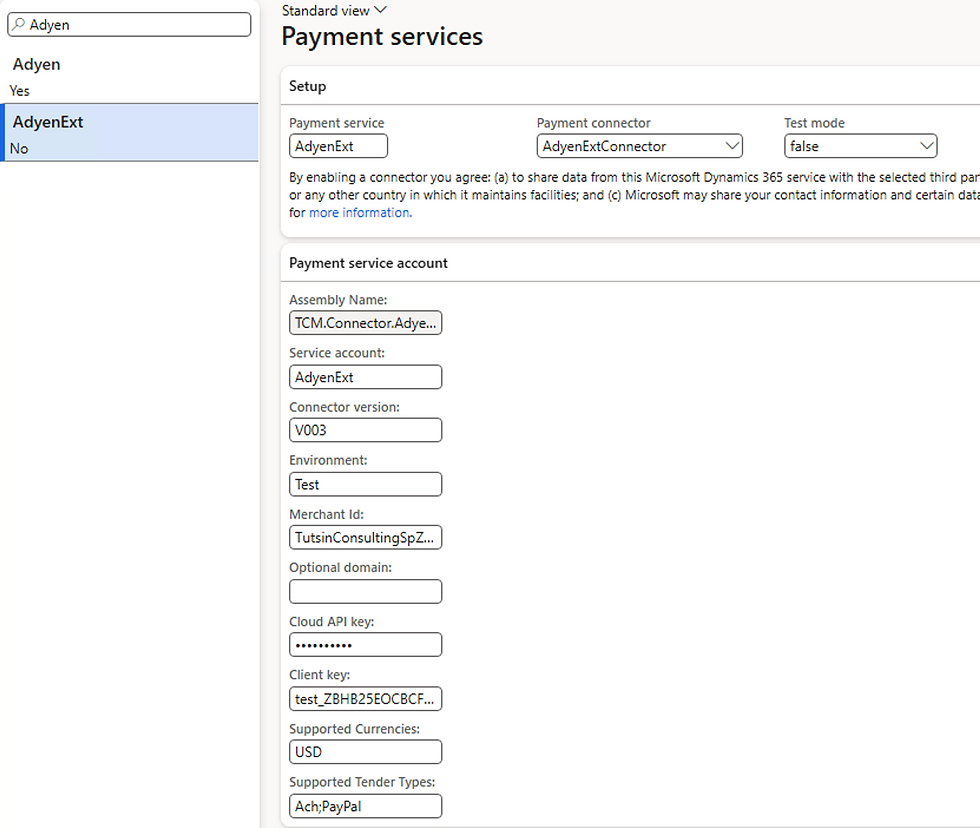
Map payment methods to a new payment connector
Retail and Commerce > Channel setup > Payment methods -> Card types
We will create ACH and PayPal card types.

Add new card types After that we will map them to new payment connector, Click on "Processor mapping" button

Add a mapping Add a mapping

Mapping for ACH and PayPal
Online store changes
Go to site builder and open the checkout fragment
Create a new payment fragment just below the standard payment fragment. The standard Adyen connector must come first. Then specify the supported tender types: ACH and PayPal.

Add new payment fragment Publish your changes
E-commerce checkout
Once you have run the required jobs in Dynamics 365 — 1070 and 1110 — the new payment methods will be available in the e-commerce checkout.

This article does not cover the full ACH implementation. ACH is an asynchronous payment method and cannot be treated the same way as a card payment — the authorisation is not a guarantee of funds, and settlement takes several business days. With the right modifications in F&O it is possible to support it properly, but that is a topic for a separate article.
This approach avoids replacing the Microsoft-standard Adyen connector and allows additional payment methods to be introduced with a smaller, targeted extension.
Summary
If you are asked to add new payment methods, do not reinvent the wheel. Use the standard connector as your base and add the requested payment methods in a new connector built on the PaymentSDK framework.
If you also use POS, include the new connector in your hardware station extension package and configure it in the hardware profile. Referenced refunds will then be supported out of the box.
Need to extend the Adyen connector in Dynamics 365 Commerce?
Tutsin can help you design and develop a targeted payment connector extension using the Dynamics 365 Payment SDK. We’ve helped our customers add SEPA, ACH, iDEAL, Swish, Klarna, and many other payment methods to their Dynamics 365 Commerce payment flows.
Comments